Manage account settings
Use the Account page in CID Hub to review your organization's account details. Administrators can update the company information and contacts.
Prerequisites
- You must have a CID Hub account and be signed in. Any signed-in user in your account can view the Account page.
- To make changes, you must have the Administrator role. See Roles and privileges.
Open the Account page
The Account page opens from the Settings menu in the top navigation bar.
-
Click the Settings (gear) icon in the top-right corner of the top navigation bar.
-
Select Account.
The Account Summary page opens with your organization's details.
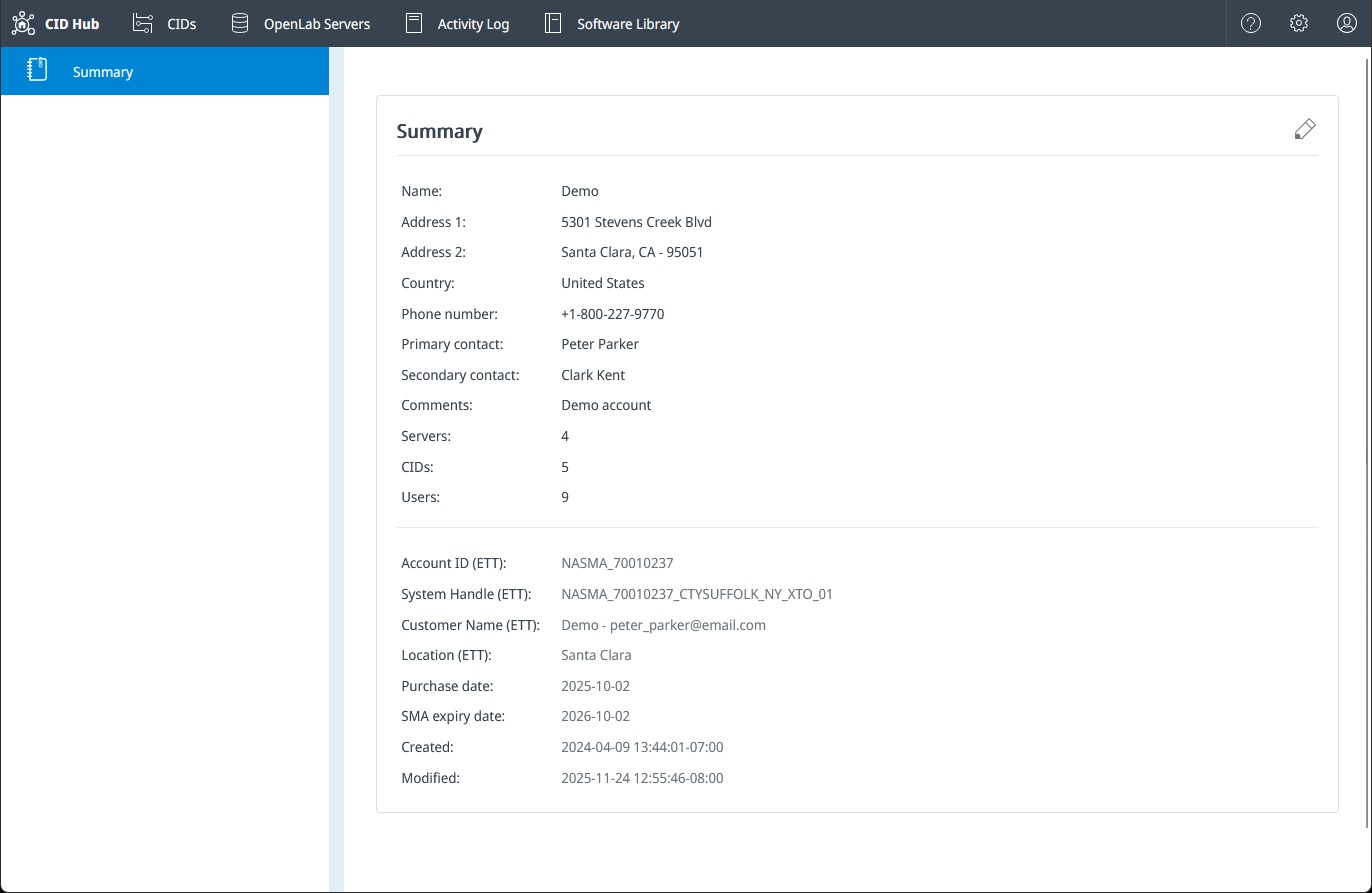
Account Summary
The Account Summary page shows:
- Company name and address. Your organization's registered name and mailing address.
- Country and phone. The account's country and primary phone number.
- Primary contact and secondary contact. The people CID Hub shows as the main account contacts.
- Comments. Free-text notes stored with the account.
- Servers, CIDs, and Users. Read-only counts of the OpenLab Servers, CIDs, and users registered to the account.
- Date created and Date modified. When the account was created and last updated.
- Purchase date and SMA expiry date. Licensing dates shown when Agilent has set them.
- Agilent-managed fields. Account ID (ETT), System Handle (ETT), Customer Name (ETT), and Location (ETT), shown when Agilent has set them.
Edit account details
Update your account details when your organization's address, contacts, or other information changes.
-
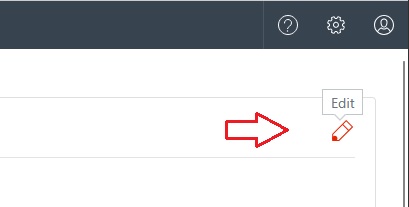
On the Account Summary page, click the Edit (pencil) icon.
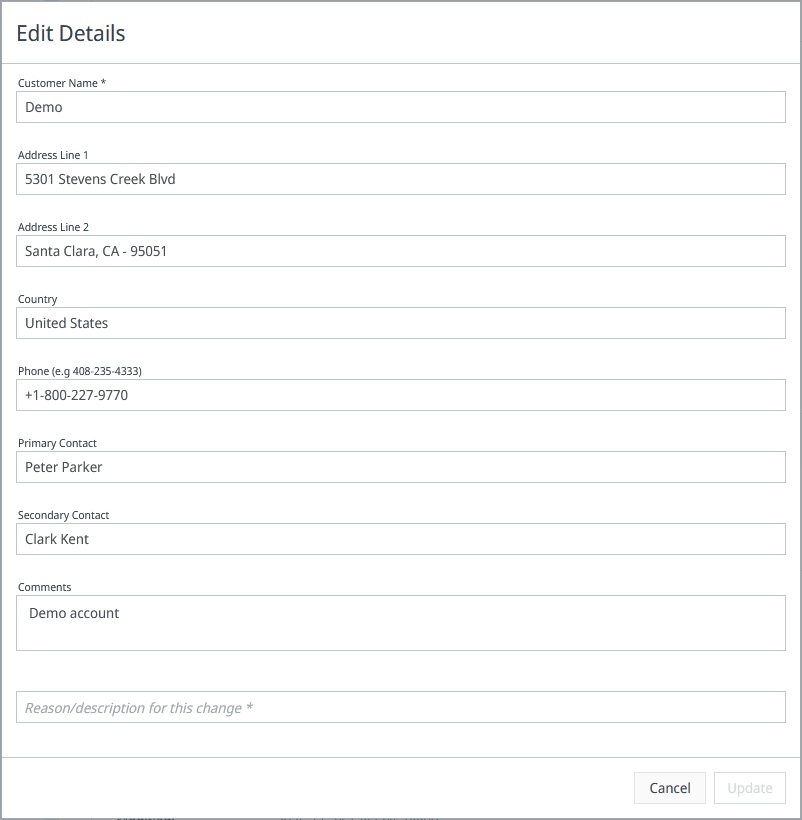
The Edit Details dialog opens.
-
Update any of the editable fields: address, country, phone, primary or secondary contact, and comments. The company name is also editable but must remain unique across all CID Hub accounts (matching is case-insensitive); it cannot be blank.
-
Enter a justification in the Reason/description for this change field. This field is required and is recorded with the change in the Activity Log.
-
Click Update to save, or Cancel to discard your edits.
Fields labeled (ETT), along with Purchase date and SMA expiry date, are managed by Agilent. Contact Agilent support if any of these values is wrong.
See also
- Manage users and roles: invite users, assign Administrator or User roles, and remove access.
- View activity logs: review who changed which account details and when.
- Security model: understand roles, sign-in methods, and session behavior in CID Hub.
Last updated: