Manage users and roles
Use the Users page in CID Hub to invite people to your account, assign them a role, reset their password, and remove their access when they no longer need it. For a complete permission comparison, see Roles and privileges.
Your account's first Administrator is created by Agilent when the account is provisioned. From that point on, Administrators in your account manage everyone else.
Welcome emails are sent from no-reply@hub.cid.agilent.com with subject Connected Instrument Device Hub for OpenLab CDS: Your Temporary Password. Ask your IT team to allow this sender so invitations and password-reset emails are not filtered out.
Prerequisites
- You must have the Administrator role to invite, edit, reset, or remove other users.
- You need each new user's full name and email address before you invite them.
Open the Users page
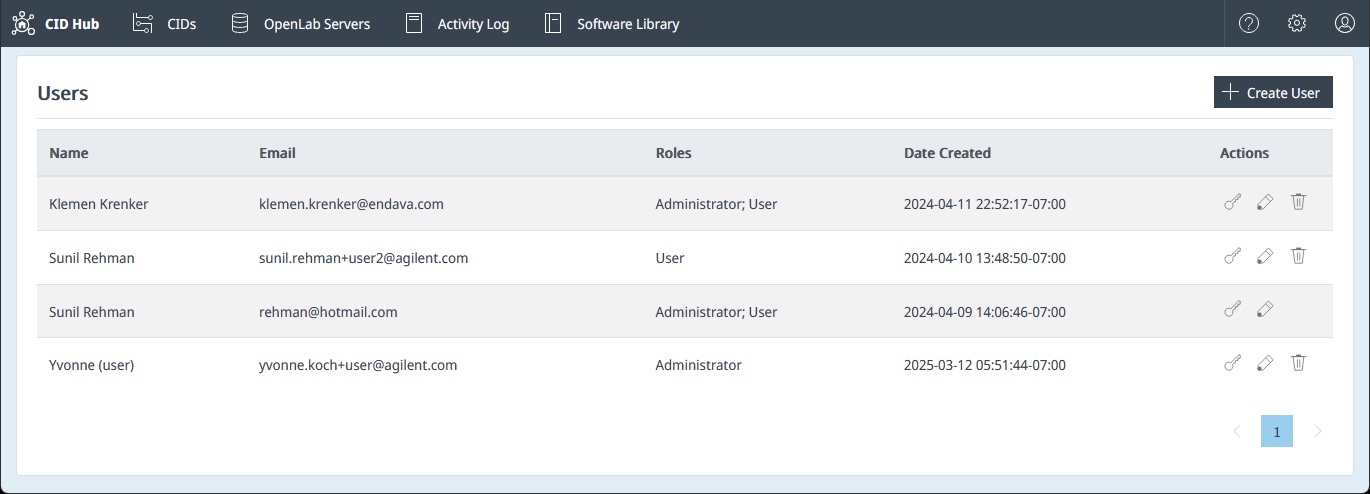
The Users page lists everyone in your account.
-
Click the Settings (gear) icon in the top-right corner of the top navigation bar.
-
Select Users.
The Users list opens. From here you can add, edit, reset, or remove users.
Invite a user
Invite a new user by email and assign their initial roles.
-
On the Users page, click + Create User.
-
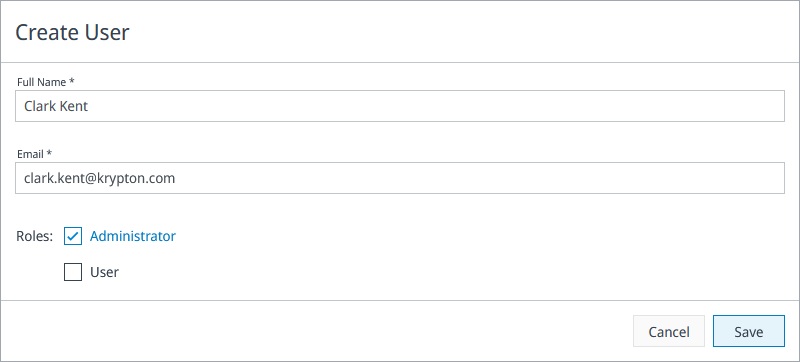
In the Create User dialog, enter the user's Full Name and Email.
-
Select roles: Administrator, User.
-
Click Save.
The new user receives a welcome email at the address you entered, with a temporary password and a link to sign in.
Email addresses are case-insensitive. CID Hub converts the address to lowercase on entry, so Jane.Doe@example.com and jane.doe@example.com are treated as the same user.
Edit a user
You can change a user's full name or role assignment at any time. The email address is the account identifier and cannot be changed; if a user needs a different email, remove the account and invite them again.
- Find the user in the list.
- Click the Edit (pencil) icon in the Actions column.
- Update the Full Name or change which roles are selected.
- Click Save.
If you edit your own account, the page reloads so your session reflects the new role assignment.
Reset a user's password
If a user forgets their password or their temporary password expires before they sign in, send them a fresh reset email.
-
Find the user in the list.
-
Click the Reset Password (key) icon in the Actions column.
-
Confirm when prompted.
CID Hub emails the user a temporary password and a link to the CID Hub sign-in page. The user signs in with the temporary password and creates a new password.
Remove a user
Removing a user revokes their access to your account.
- Find the user in the list.
- Click the Delete (trash can) icon in the Actions column.
- Confirm when prompted.
The user is removed from the directory. Any further access requests from that user are rejected.
You cannot remove your own account. Ask another Administrator to do it, or contact Agilent support if you are the only Administrator.
See also
- Manage account settings: change account details and contact information.
- View activity logs: review sign-in, sign-out, and user-management events.
- Security model: identity provider, supported sign-in methods, and the session-revocation model for removed users.
Last updated: