View CIDs
Use the CIDs page to monitor CID readiness, identify devices that need attention, and launch list-level actions such as software updates, export, and printing. This page is for the lab administrator or IT operator who needs an operational view of the CIDs in CID Hub.
Prerequisites
- (Optional) You need at least one CID added to your account to work with live data.
Open the CIDs list
Open the list to see the CIDs in your account and their current operational state.
To open the CIDs list:
-
In CID Hub, click CIDs in the top navigation bar.
The list opens at
/cids.
The columns show whether each CID is connected, whether software changes are pending, and whether the CID is following its server template. See CID statuses and record fields for every value and its meaning.
Sort or filter the list
After you understand what each column shows, use sorting and filtering to narrow the list to the CIDs you need to review.
To sort or filter the list:
- Click a column header to cycle through ascending, descending, and unsorted order.
- Click the chevron next to a column header to open that column's filter options.
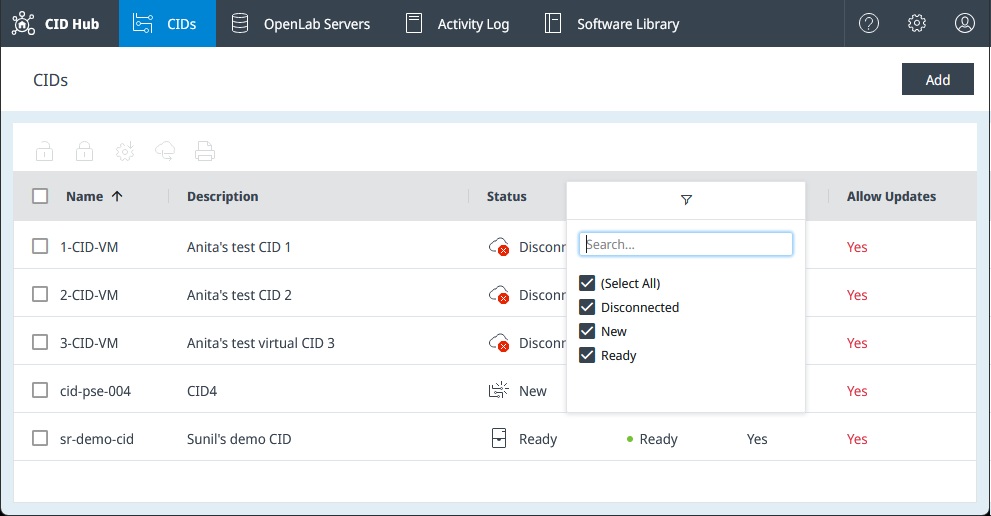
By default, CID Hub sorts the list by Name in ascending order.
Use bulk actions
After you identify the CIDs you want to work with, you can run list-level actions from the toolbar above the table.
To use a bulk action:
- Select one or more CIDs in the list.
- Click the action you want to run above the table.
-
Turn on 'Allow Updates' and Turn off 'Allow Updates' let you allow or disallow changes for several CIDs at once. (The toolbar labels say Allow Updates; this is the same Allow Changes setting that appears on each CID's detail page.)
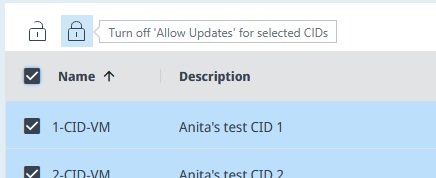
Administrators can use these buttons. Turning changes on requires a reason, which CID Hub records in the Activity Log for each affected CID. Turning changes off does not require a reason.
-
Apply All Updates starts software installation for the selected CIDs.
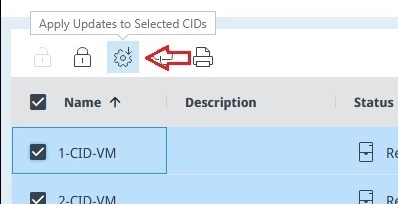
Use this action when the selected CIDs are in a suitable state, ideally Ready, and their Updates column shows Ready.
-
Export CID Data downloads information about the selected CIDs in JSON format.
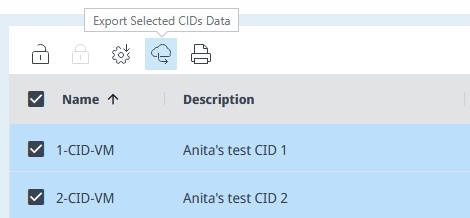
Use this export when you need CID summary, software, and networking information outside the portal.
-
Print Report opens a printable report for the selected CIDs.
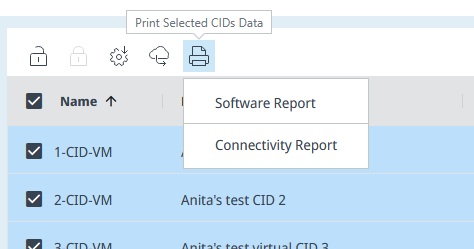
- Software Report. Shows the CID overview and installed software versions.
- Connectivity Report. Shows whether each CID is connected to CID Hub and whether its connected instruments pass the report's connectivity check.
See also
- Activate a CID: create a CID record and bring a physical CID into service.
- Configure software exceptions: identify and manage CIDs that do not inherit the server template.
- Apply updates: install downloaded software changes on one or more CIDs.
- Administer a CID: reboot a CID, restart services, reset OpenLab CDS, and manage access.
- View activity logs: review the history of bulk actions and other CID events.
Last updated: