View devices
The Devices page provides a comprehensive list of all physical CID devices registered to your account. Use this view for administrative and support purposes to track a device from its initial registration to its active state. It helps you confirm that a device connects to CID Hub and becomes active after it is registered.
Prerequisites
- You must have the Administrator or User role to view the Devices page.
Open the Devices page
Open the page to see the physical devices registered to your account and their current states.
To open the Devices page:
-
Click the Settings (gear) icon in the top-right corner of the top navigation bar.
-
Select Devices.
The Devices list opens.
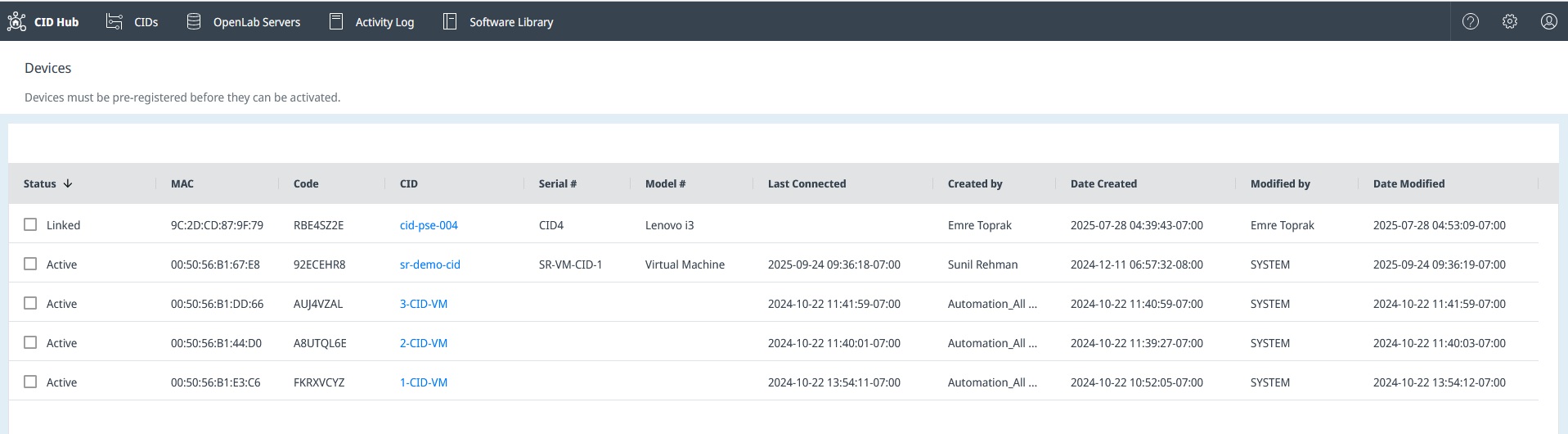
The columns show hardware details, activation status, and tracking information. See Device registry for field definitions and the meaning of Linked and Active.
Sort and filter
Sort and filter the list to narrow it to the devices you need to review.
To sort or filter the list:
- Click a column header to cycle through ascending, descending, and unsorted order.
- Click the chevron to the right of a column header to open that column's filter options.
The filter options work the same way as those on the View CIDs page.
See also
- View CIDs: monitor CID readiness and run list-level actions such as software updates and export.
- Activate a CID: create a CID record and bring a physical CID into service.
- Administer a CID: reboot a CID, restart services, reset OpenLab CDS, and manage access.
Last updated: