Activate a CID
Each physical CID must have a matching record in CID Hub before it can be used. This page is for the lab administrator or IT operator who creates that record and monitors the device through activation. Activation is largely automatic: once you create the record with a valid PIN code, the CID detects it on the next contact attempt and begins installing OpenLab CDS.
Prerequisites
- You must have an administrator role to activate a CID.
- You need a registered OpenLab Server for the CID to connect to.
- You need a defined software template on that server.
- You need the 8-character PIN code printed on the physical CID's QR sticker.
- The physical CID must be powered on and connected to your network through its Corporate NIC. DHCP must be available for initial activation. After activation, you can change the Corporate NIC to a static configuration in CID Hub.
Add a CID record
Creating a CID record in CID Hub links the physical device to the configuration it adopts during activation. To add a CID record:
-
In CID Hub, navigate to CIDs and click Add.

-
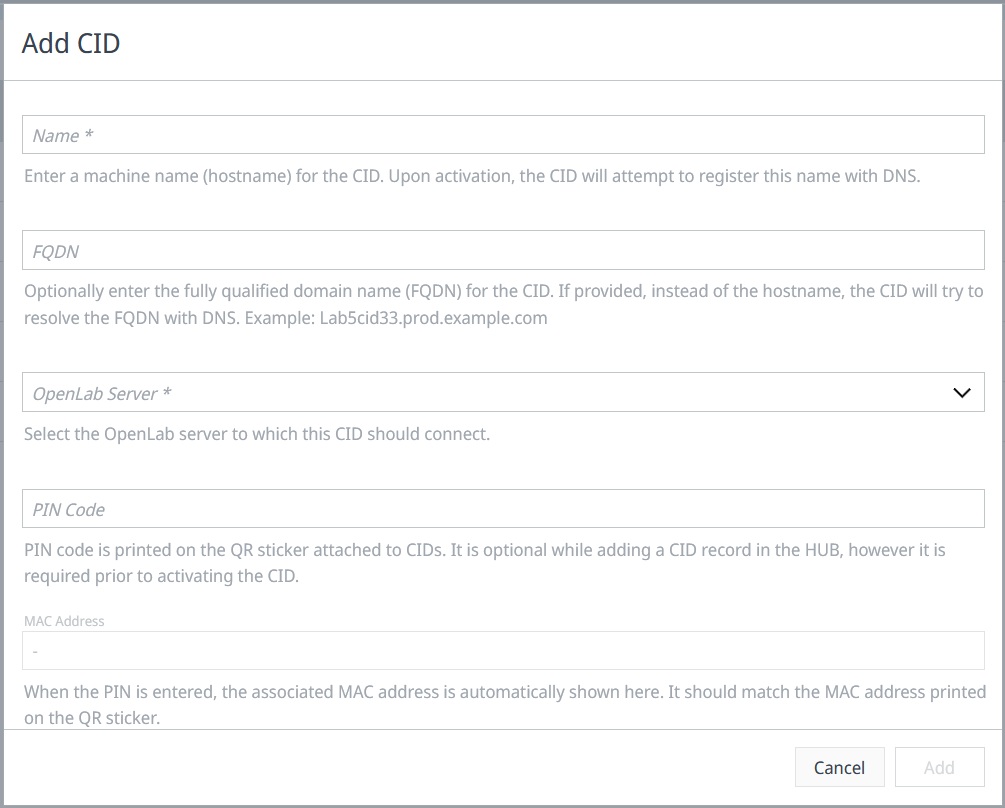
In the Add CID dialog, enter the fields described in Field descriptions.
-
Click Add.
The record is created with status New. After an unsuccessful activation attempt, the CID waits 30 seconds before trying again. When it finds the record, it begins activation.
Field descriptions
- Name. The machine name (hostname) for the CID. For compatibility with DNS servers, enter 3–15 letters, numbers, or hyphens. The name cannot contain only numbers or end with a hyphen. Agilent recommends a naming pattern that distinguishes CIDs from Analytical Instrument Controllers (AICs), for example
cid-1290lc-53. - FQDN (optional). Set only if short-hostname resolution fails in your network. When set, the CID resolves this fully qualified domain name through DNS instead of the short hostname.
- OpenLab Server. The server this CID registers with. The server's software template provides the default CDS version, drivers, and OS update levels for the CID.
- PIN Code. The 8-character code printed on the QR sticker attached to the physical CID. The PIN links this record to the hardware. PIN codes use the characters A–Z (excluding I and O) and digits 2–9 to avoid transcription errors.
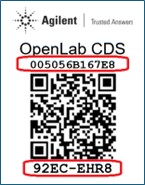
You can also scan the QR sticker on the device. The activation URL embedded in the QR code opens the Add CID dialog with the PIN Code field prepopulated.
What happens during activation
After the CID finds its record in CID Hub, it runs through the following steps. Monitor progress in the Recent activity section of the CID's Summary page.
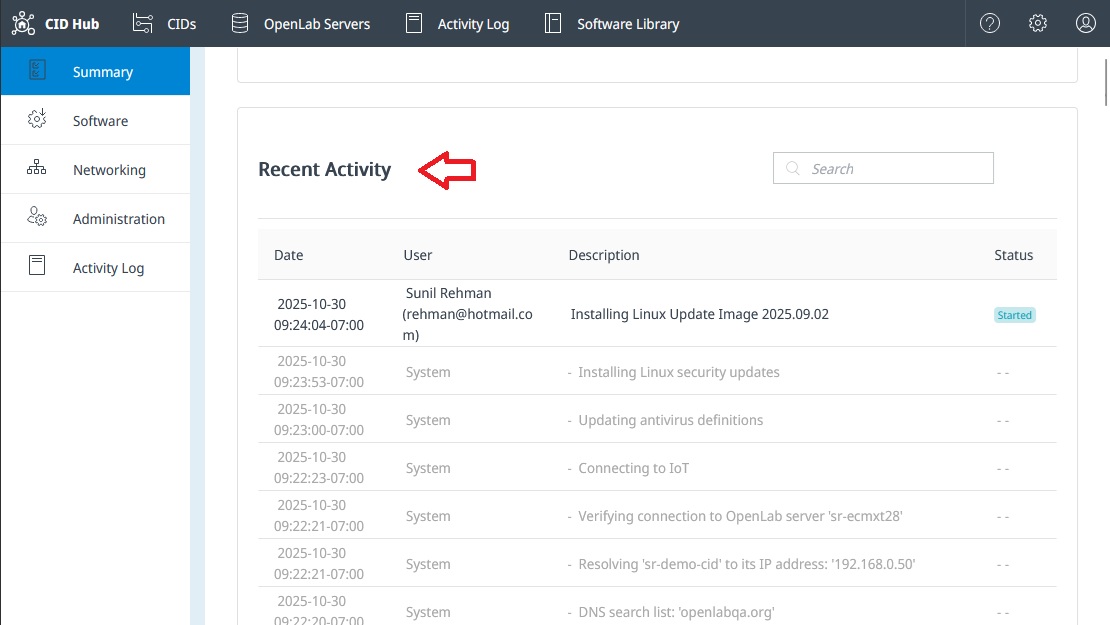
- Verifies network connection on the Corporate NIC.
- Connects to CID Hub.
- Retrieves the OpenLab Server information from the CID record.
- Changes its hostname to Name if it differs from the current hostname.
- Confirms DNS resolves the hostname to the IP address configured for the Corporate NIC.
- Confirms connectivity to AWS IoT Core.
- Confirms connectivity to the OpenLab Server.
- Installs the selected Linux update and antivirus definitions.
- Downloads, installs, and starts the OpenLab CDS Windows VM.
- Installs Enterprise Content Manager (ECM) 3.x APIs in the Windows VM if the OpenLab Server uses ECM 3.x as its backend.
- Configures and registers the Windows VM as an AIC with the OpenLab Server.
- Installs Windows updates in the Windows VM.
- Installs the selected drivers and add-ons.
- Schedules antivirus scans.
- Rotates the default passwords for the CID Linux subsystem and the Windows VM.
If the OpenLab Server or OpenLab ECM 3.x server uses a certificate that is not publicly trusted, add the required certificate to CID Hub before you activate the CID. For a certificate issued by your organization's certificate authority, import the root and any intermediate certificates. For a standalone self-signed certificate, import the server certificate itself. Otherwise, the CID cannot trust the server at steps 10 and 11, and registration fails. See Use corporate certificates.
Activation typically takes 30–120 minutes, depending on network speed and the size of necessary downloads. The CID's status in CID Hub transitions from New to Ready when activation completes.
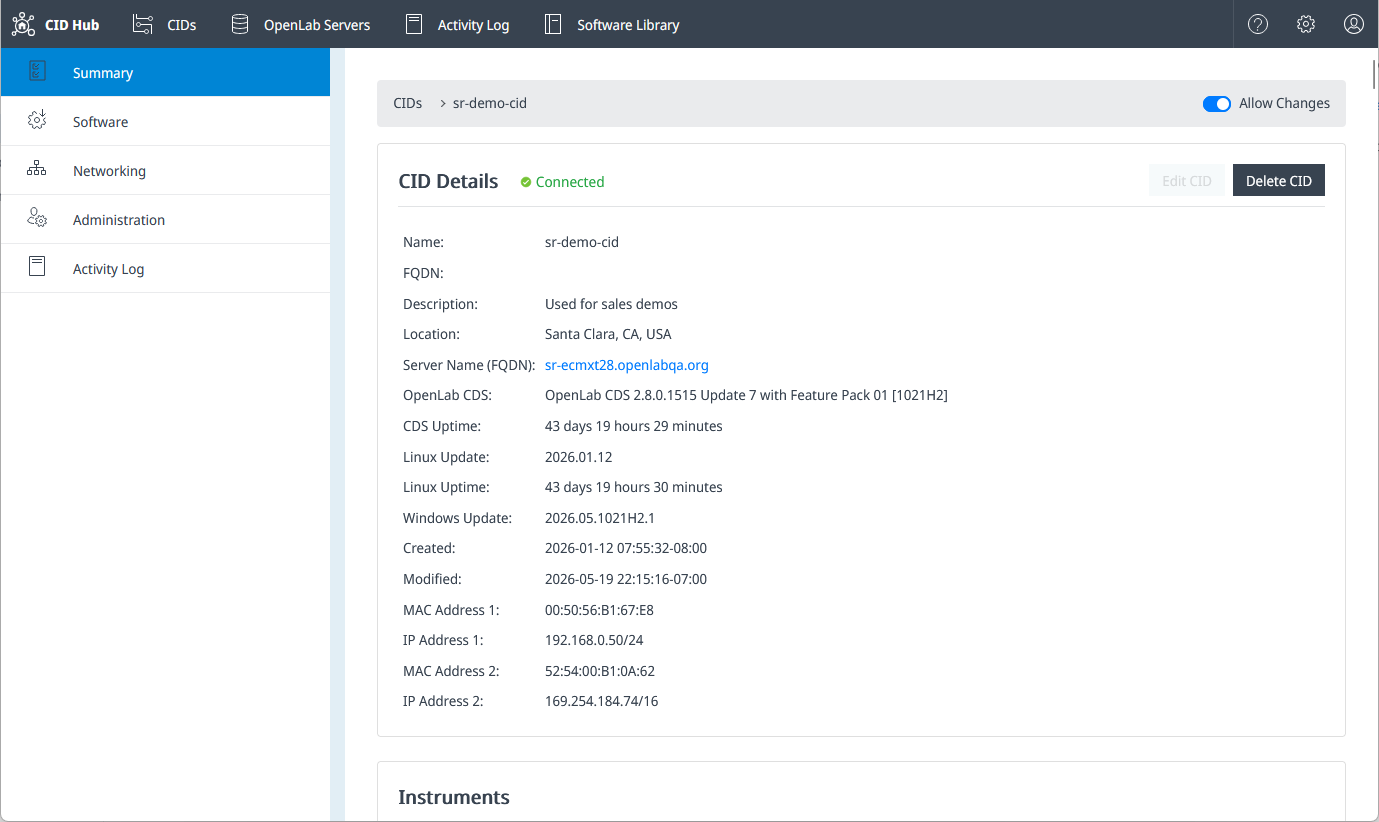
If the Recent activity panel shows an error, the CID beeps repeatedly, or the status remains New after 2 hours, the activation has likely stalled. Use the Troubleshooting index to route by symptom.
See also
- Register an OpenLab Server: the prerequisite that supplies the activation target and default software template.
- Define a software template: the software defaults the CID inherits during activation.
- Configure network cards: set up the Corporate NIC and Instrument NIC after activation.
- View CIDs: monitor CID status after activation completes.
- View activity logs: review activation events for traceability and troubleshooting.
- Administer a CID: reboot, factory reset, and other post-activation operations.
Last updated: