Administer a CID
Use the CID Administration tab for device access, maintenance, and recovery. The CID host runs the CID software and an embedded Windows VM that runs OpenLab CDS, so choose an action based on which part of the system needs attention.
caution
Do not use CDS Desktop or Linux Cockpit to install software or change system settings. Manual changes can leave the CID in an unsupported state. Use Linux Cockpit only when directed by Agilent Support.
Open the Administration tab
- In CID Hub, click CIDs and select the CID.
- Click Administration.
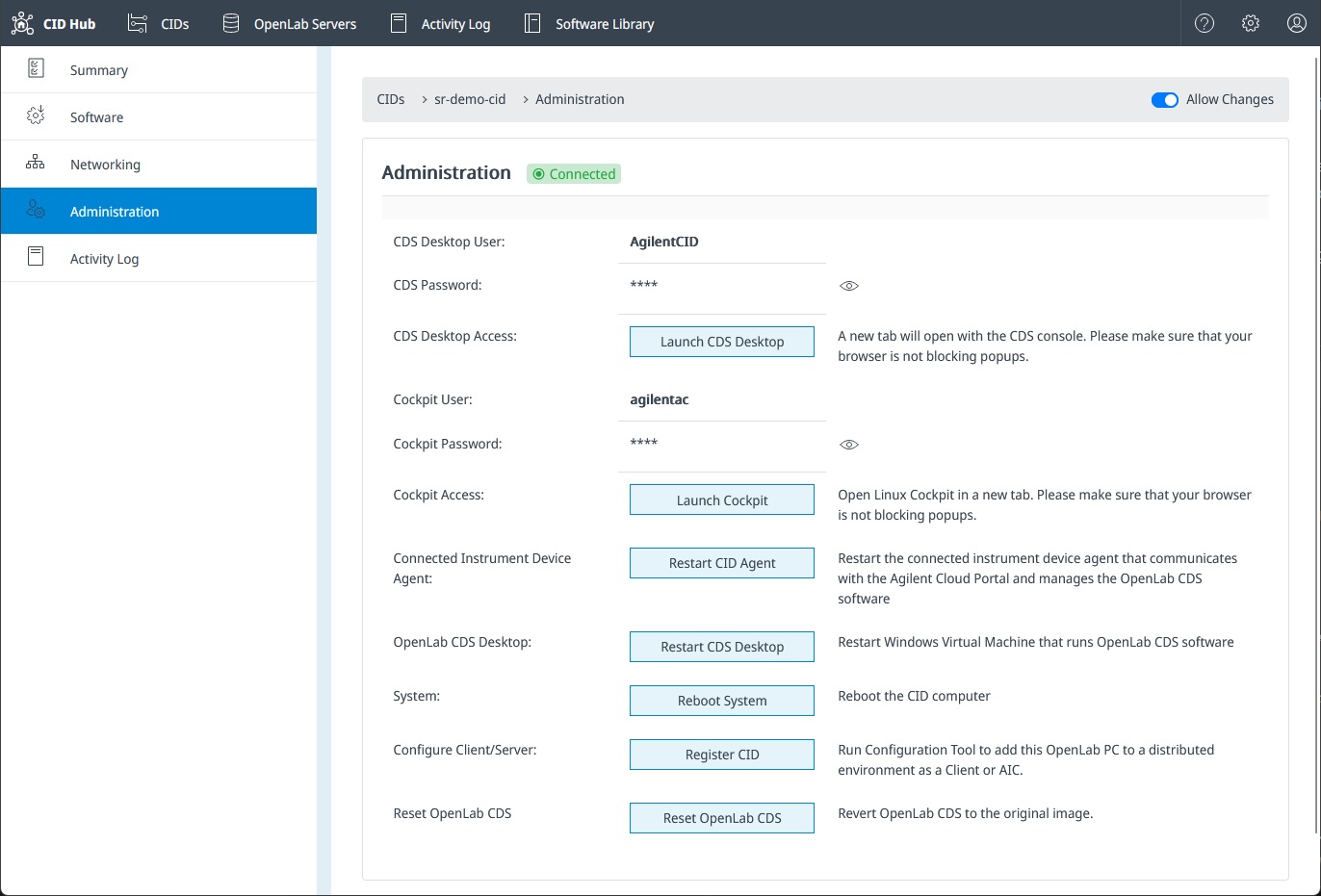
Available actions depend on the CID connection state, Allow Changes, your privileges, and whether another administrative or remote-access operation is active.
Choose an administration task
- Retrieve CID credentials: obtain the current CDS Desktop or Linux Cockpit credentials.
- Restart, register, or reset a CID: restart components, repeat OpenLab registration, or rebuild the Windows VM.
- Factory reset a CID: clear the CID identity and configuration so the device can be registered again.
- Manage an Agilent support session: approve, decline, or end remote support access.
Retrieve device credentials
Restart a service or the host
See Restart, register, or reset a CID.
Reset OpenLab CDS
See Restart, register, or reset a CID.
Factory reset the CID
See Factory reset a CID.
Approve or end an Agilent support session
See Manage an Agilent support session.
See also
- View activity logs: review recorded administration and recovery actions.
- Apply updates: install pending software after a recovery.
- Remote access: understand the remote-access security model.
Last updated: