Run OpenLab CDS in Failover mode
When you need to use OpenLab CDS failover on a CID, your task in CID Hub is to access the CID's Windows VM desktop. OpenLab CDS controls failover after you sign in to the desktop and open the application.
This page covers the CID access procedure. For current information about failover availability, operation, limitations, data handling, and recovery, use the OpenLab CDS Failover Guide supplied with your version of OpenLab CDS.
Use this procedure only when network connectivity between the CID's Windows VM and the OpenLab Server is lost. Do not use Failover when that network connection is available but a service on the OpenLab Server is unavailable.
You will work in two places: CID Hub (from any internet-connected device, including a phone) to retrieve the current Windows VM password, and the Windows VM console on the CID itself to run CDS.
Prerequisites
- You must be able to sign in to CID Hub and see the CID.
- You need to know which CID controls the instrument. If you do not, see Identify the CID.
- You need network access to the CID.
- You need Chrome or Edge to open the Windows VM console.
Identify the CID
Skip this section if you already know the CID name.
Once the OpenLab Server is unreachable, Control Panel cannot tell you which CID controls which instrument, so the mapping has to be available locally before an outage. Use whichever of the following you already have in place:
- A label on the instrument bench listing the CID's name and IP address.
- A naming scheme that ties each CID to its instrument (for example,
cid-1290lc-53for the 1290 LC at bench 53). - A printed Instrument Controllers Report or Instrument Report from Control Panel, kept near the bench. Reprint it whenever instruments are added, moved, or renamed so the copy on the bench stays current.
If DNS is unavailable on your network during the outage, you will also need the CID's IP address for the direct-URL method.
Retrieve the CDS Desktop password
The Windows VM password rotates automatically every 24 hours, so you must read the current value from CID Hub each time you start a failover session.
- Sign in to CID Hub. If lab computers cannot reach the internet during the outage, use a phone or any other internet-connected device.
- Open the CIDs list and select the CID you identified.
- In the sidebar, click Administration.
- Under CDS Desktop user, note the username and click the eye icon to reveal the password. Copy both; you will need them in a moment.
Open the Windows VM console
There are two ways to reach the console. Both end at the same Windows sign-in screen.
- From CID Hub. Use this approach when the CID can still reach CID Hub, even though its connection to the OpenLab Server is unavailable.
- From a direct URL. Use this fallback when the CID also cannot reach CID Hub, but your computer can still reach the CID over the local network.
From CID Hub
- On an internet-connected computer, open CID Hub in a browser.
- Open the CIDs list and select the CID. In the sidebar, click Administration.
- Click Launch CDS Desktop.
- In Reason/description for this change, enter a reason for opening the session.
- Select how to reach the CID:
- Local: your computer is on the same corporate network as the CID (onsite or VPN). The console opens over a direct HTTPS connection to the CID.
- Remote: your computer is on a different network. CID Hub opens a tunneled session so the console is reachable from outside the corporate network.
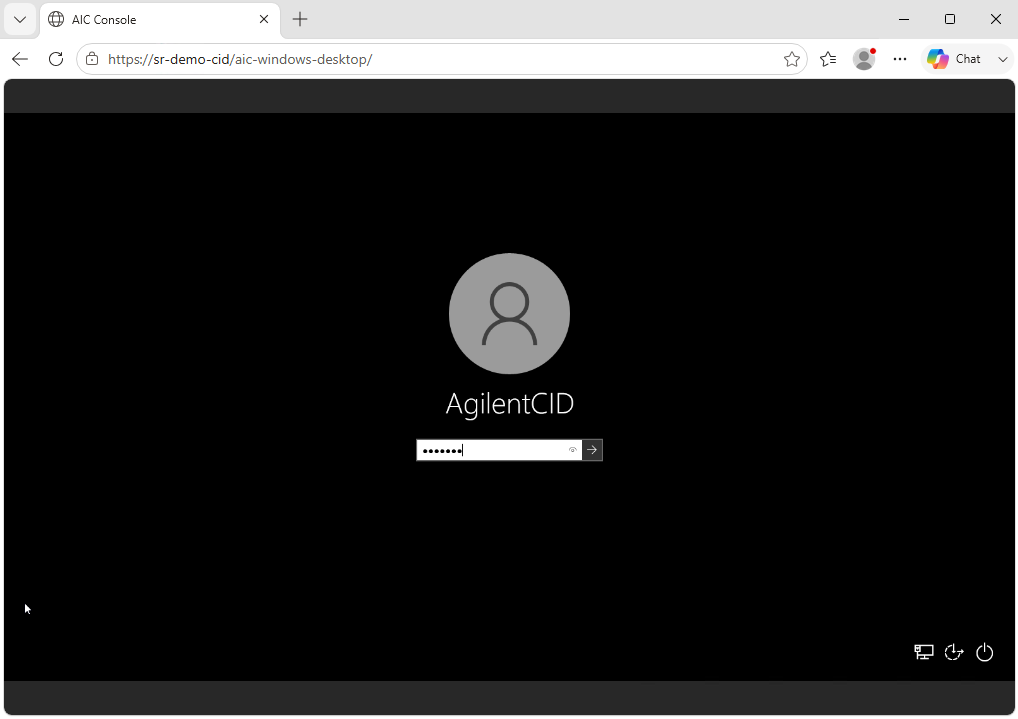
- The Windows sign-in screen opens in a new browser tab.
From a direct URL
For example, an internet outage can cut off the lab's access to both an OpenLab Server hosted in a remote data center and CID Hub, while the local network continues to work. If the instruments, CIDs, and bench computers can still reach each other over that network, you can open the CID's Windows VM console directly from a bench computer.
You still need the current CDS Desktop username and password from CID Hub. If the lab's computers cannot reach CID Hub, use a phone on cellular data or another device with a working internet connection to follow Retrieve the CDS Desktop password. Then use those credentials to sign in to the console on the bench computer.
- From a computer on the same network as the CID, go to
https://<cid-name-or-ip>/aic-windows-desktop/in Chrome or Edge. Use the CID name if DNS resolves it; otherwise, use its IP address. - The Windows sign-in screen opens.
Sign in and continue in OpenLab CDS
- Sign in with the CDS Desktop user credentials you copied from the Administration tab.
- Open OpenLab CDS.
- Follow the OpenLab CDS Failover Guide for your system.
Log out of Windows when you finish. If you close the browser tab instead, a missed keep-alive heartbeat logs you out automatically. To return, launch the console again and sign in with the current credentials. Only one console session is active per CID at a time, so a new connection displaces any existing one. See the Windows VM console section of Remote access for the full session rules.
From this point on, you are working in OpenLab CDS rather than CID Hub. For the current failover instructions, see the guide supplied with your version of OpenLab CDS. The guide is available from OpenLab CDS Documentation.
See also
- Retrieve CID credentials: get the current CDS Desktop credentials.
- View activity logs: review the CID's recent activity around the outage.
- Remote access and support tunnels: how the tunneled Remote option to the Windows VM console is brokered and logged.
Last updated: