Register an OpenLab Server
Each CID activates with CID Hub. Its Windows VM then registers with the assigned OpenLab Server and inherits that server's software template. This page is for the lab administrator or IT operator who records the server's connection details in CID Hub before adding a CID.
You can register a server in CID Hub before the physical server is online.
CID Hub and the OpenLab Server are independent systems and do not communicate with each other. The values you enter here, including the software template you later assign, are read by the CID itself when it registers with OpenLab Shared Services (OLSS) as an instrument controller. The server is not modified in any way.
Prerequisites
Before you register an OpenLab Server, confirm these prerequisites.
- You must have an administrator role to register an OpenLab Server.
- You need the fully qualified domain name (FQDN) of the OpenLab Server.
- You need an OpenLab administrator username and password for the CID to present to OLSS during registration. (These are reused when running Register CID or Reset OpenLab CDS.)
- (Optional) You need the Server Message Block (SMB) path and credentials for a network share used to cache OpenLab CDS KVM images.
Register a server
To add an OpenLab Server to CID Hub:
-
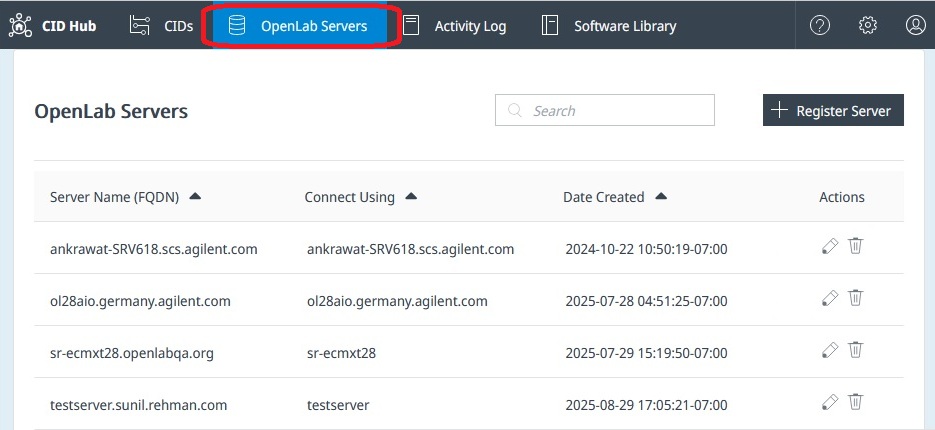
In CID Hub, click OpenLab Servers in the top navigation bar.
-
Click Register Server.
-
In the Register Server dialog, enter the server's FQDN, connection convention, and OpenLab administrator credentials. You can also enter an optional description and CID Network Share settings. See OpenLab Servers for field definitions and validation rules.
-
Click Register.
The server appears in the OpenLab Servers list and is immediately available to assign to a CID.
Edit a registered server
Remove a registered server
See also
- Activate a CID: the activation flow that uses a registered OpenLab Server.
- Define a software template: set the default OpenLab CDS, driver, and OS update versions a CID inherits from this server.
- Edit an OpenLab Server: update connection, credentials, or network-share settings.
- Remove an OpenLab Server: delete a server record that no longer has associated CIDs.
- Use corporate certificates: import the CA a CID needs to trust a corporate or self-signed server certificate.
- Register or reset a CID: run Register CID or Reset OpenLab CDS after credential or FQDN changes.
- View CIDs: confirm CIDs reconnect after a server edit.
- View activity logs: review the history of server registration, edits, and removals.
Last updated: