Use corporate certificates
Use the Certificate Authorities page in CID Hub to make CIDs trust corporate or self-signed certificates on an OpenLab Server or OpenLab ECM 3.x server. Import the issuing certificate authorities (CAs), then CID Hub distributes them to every CID in your account.
Import your root and intermediate CAs, not individual server certificates. Your CAs validate every server certificate they signed, so importing them once covers all the OpenLab Server and OpenLab ECM servers in your organization. Import an individual server certificate only for a standalone certificate that is not issued by any CA.
For which server certificates require a CA import, see the SSL certificate requirements section of System requirements.
Prerequisites
- All signed-in users can view certificate authorities. You must have the Administrator role to import, edit, or delete them.
- You need each certificate authority in PEM format (the root certificate and any intermediate certificates), without private keys.
Open the Certificate Authorities page
The Certificate Authorities page lists the CAs trusted by your account.
-
Click the Settings (gear) icon in the top-right corner of the top navigation bar.
-
Select Certificate Authorities.
The Certificate Authorities list opens. The toolbar above the list has Edit (pencil) and Delete (trash) icons, and an Import button sits at the top right.
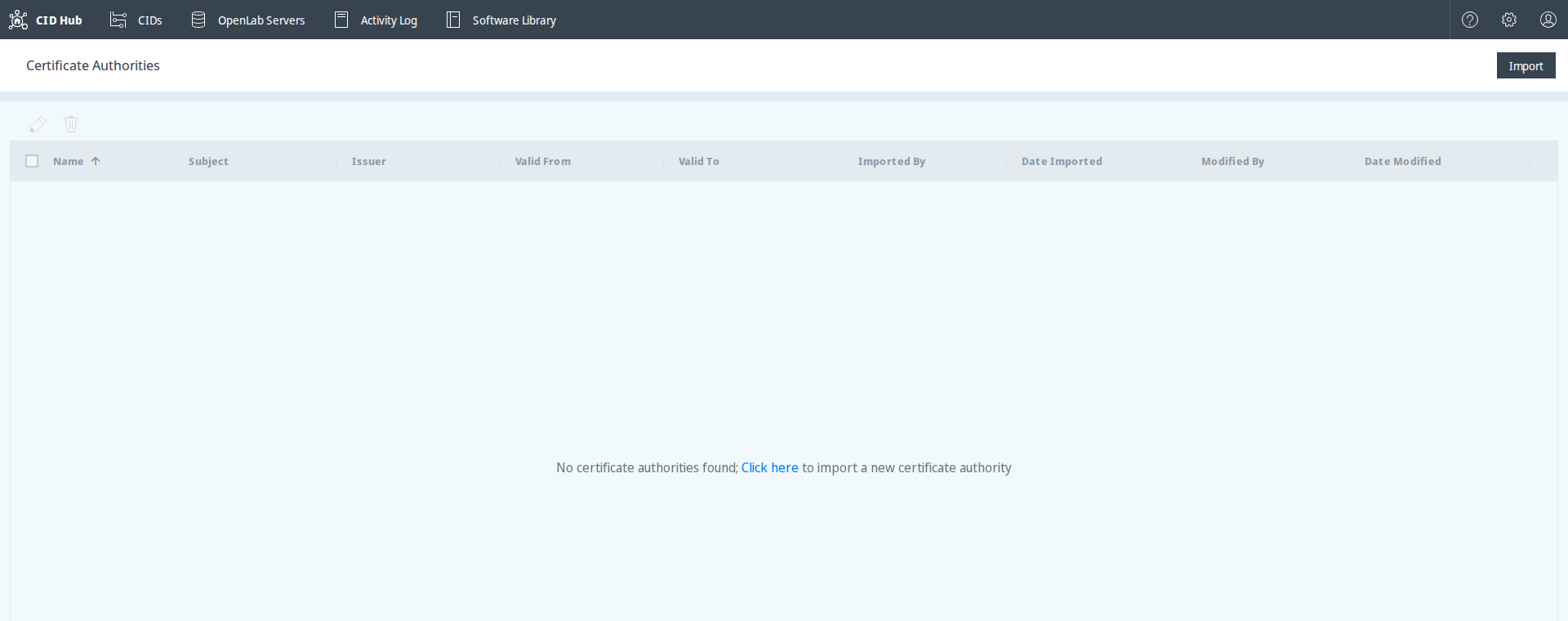
The Certificate Authorities menu item is available to all signed-in users.
Import, edit, and delete actions are available to Administrators. When the list is
empty, it shows the message No certificate authorities found; Click here to import a new certificate authority.
For definitions of the list fields and validity dates, see Certificate authorities.
Import a certificate authority
Importing adds a CA to your account and queues it for distribution to your CIDs.
-
On the Certificate Authorities page, click Import. (When the list is empty, you can instead click the Click here link in the empty-list message.)
-
In the Import Certificate Authority dialog, enter a name in Certificate Name.
-
Paste the certificate content into Certificate Data (X.509 PEM format). To import a full chain, paste the root and intermediate certificates together. CID Hub creates a uniquely named entry for each certificate, based on the name you provided.
-
(Optional) Click the preview icon below the certificate field to review the parsed certificate details before you import.
-
Click Import.
The CA appears in the list, and the import is recorded in the Activity Log.
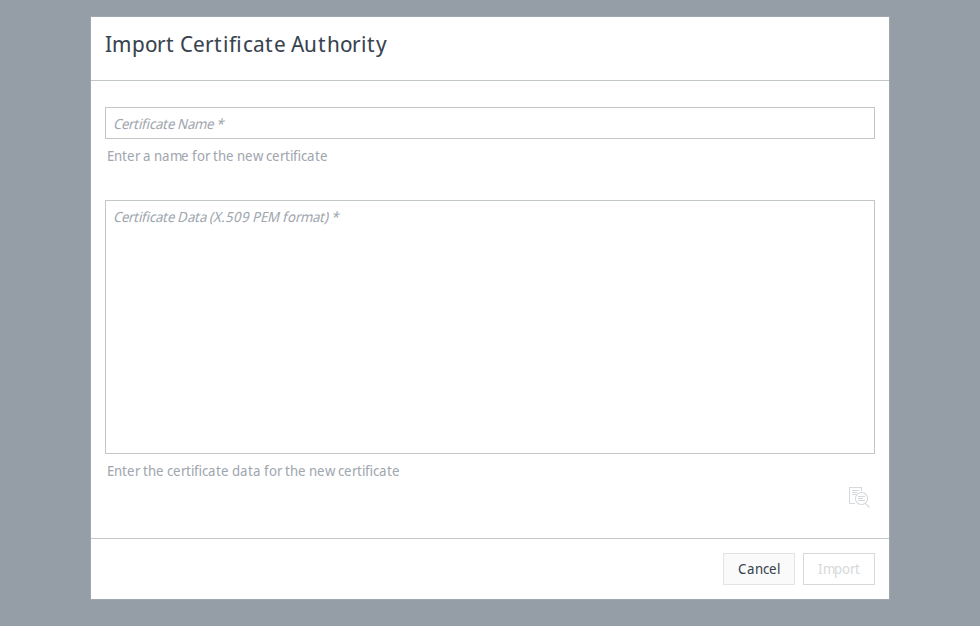
The Import button stays disabled until both fields are filled. If the content is not valid PEM, or if it includes a private key, CID Hub rejects the import and displays a validation error describing what to fix. Certificates imported into CID Hub must never contain a private key.
Edit a certificate authority
You can rename a CA or replace its certificate content.
-
Select a single CA in the list.
-
Click the Edit (pencil) icon in the toolbar.
The Edit icon is enabled only when exactly one CA is selected.
-
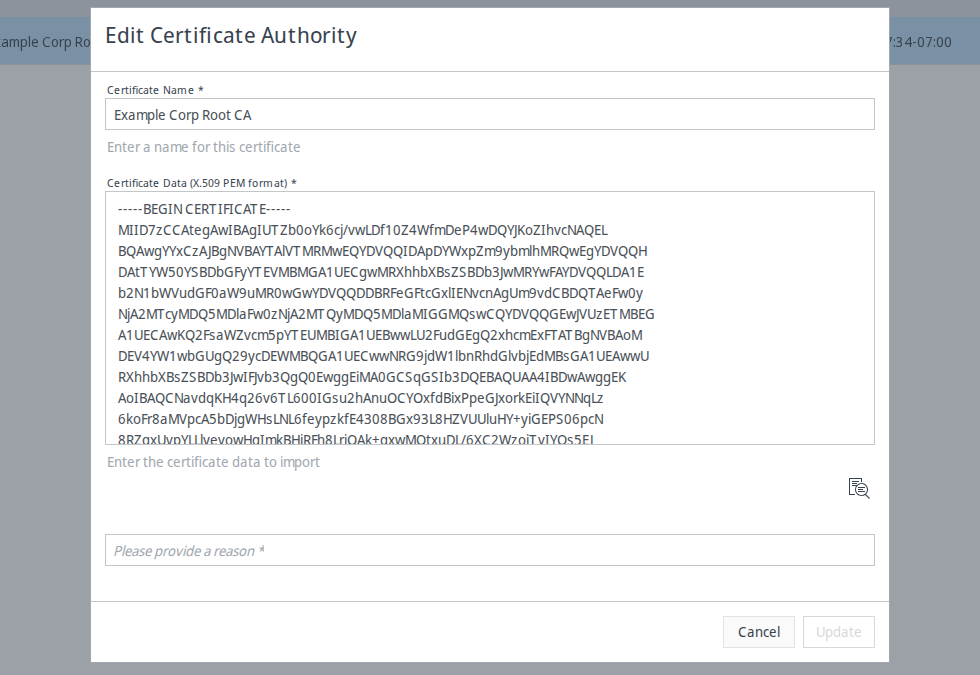
In the Edit Certificate Authority dialog, update Certificate Name, Certificate Data (X.509 PEM format), or both.
-
Enter a reason for the change. CID Hub requires a reason before Update becomes available.
-
Click Update.
The change is recorded in the Activity Log.
The updated name or certificate content is queued for synchronization with your CIDs.
Delete certificate authorities
-
Select one or more CAs in the list.
-
Click the Delete (trash) icon in the toolbar.
-
In the Delete Certificate Authority dialog, review the name shown and enter a reason in Reason for this change.
-
Click Yes to confirm.
The CAs are removed, queued for removal from your CIDs, and the deletion is recorded in the Activity Log.
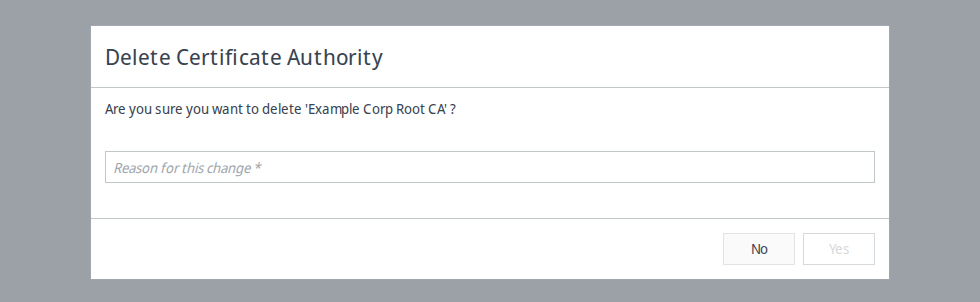
Deleting a CA removes only the entries you selected. If you imported a full chain and then select only the root, the intermediate entries remain in the list until you delete them too.
Confirm certificate distribution
CID Hub queues imported, edited, and removed CAs for distribution to every CID in your account. To confirm that a CID received the change:
- Open the CID's Summary page.
- Review Recent activity for
Installing Certificate AuthorityorRemoving Certificate Authority.
Synchronization occurs periodically, so a change can take up to 24 hours to reach a running CID. A reboot or an operation that re-registers the CID triggers synchronization sooner. For the complete synchronization and renewal rules, see Certificate authorities.
See also
- Register an OpenLab Server: record the server a CID registers against during activation.
- SSL certificate requirements: which server certificates require you to upload a CA.
- Certificate authorities: certificate fields, validation, synchronization, and renewal behavior.
- Manage users and roles: the roles that can manage certificate authorities.
- View activity logs: review CA import, edit, and delete events.
- OpenLab Server unreachable: resolve registration failures caused by an untrusted server certificate.
Last updated: