Update or upgrade OpenLab CDS
CID Hub publishes new versions of OpenLab CDS as Agilent releases them. This page is for the lab administrator or IT operator who selects a CDS version for CIDs to install. The selection is made in CID Hub; the installation itself is covered by Apply updates.
CID Hub groups OpenLab CDS versions into release trains in its software catalog:
-
The Update Available label appears next to OpenLab CDS on the Software tab when the catalog contains a newer version in the same release train.
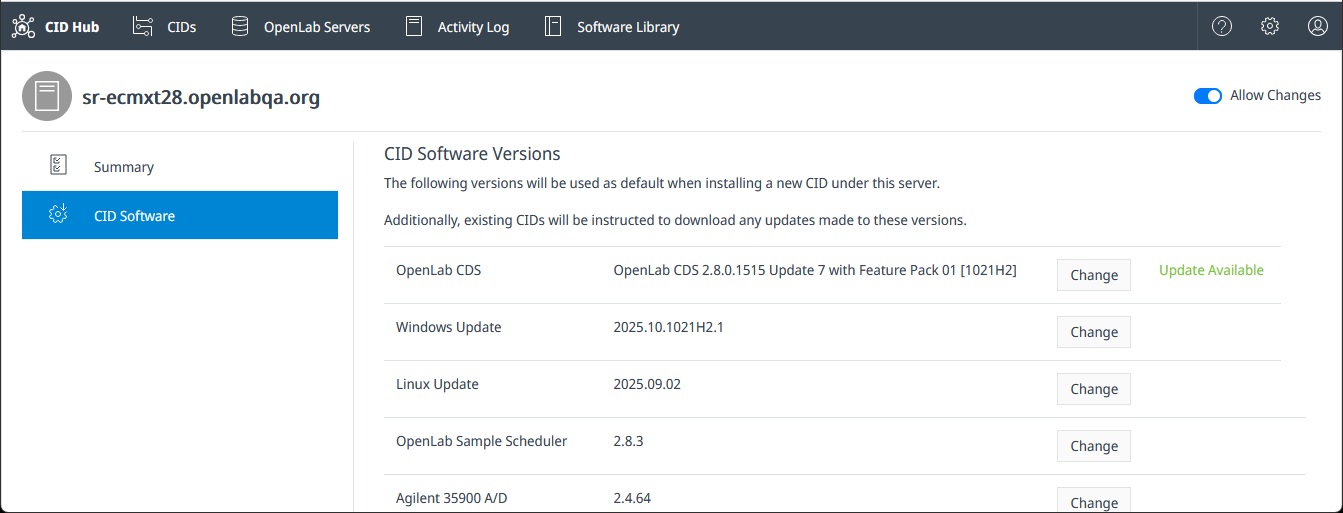
-
Upgrade. A move across major or minor versions, for example CDS 2.7 to CDS 2.8. Use Change to select the version you want, whether or not Update Available appears.
The selection mechanism is the same in both cases. The difference is which version you choose and what compatibility checks apply.
Prerequisites
Before you change the CDS version selection, confirm these prerequisites.
- You must have an administrator role to change CDS version selections.
- You need to change the version on the server's software template if you want the new selection to apply to every CID that inherits from the server.
- You need to change the version for that CID in Configure software exceptions if the CID does not inherit from the server.
- The OpenLab Server must run a CDS version that is equal to or higher than the version you select for the CIDs. Confirm the server version with your OpenLab administrator before changing the selection.
- Every OpenLab CDS Client that connects to the affected CIDs must run a CDS version that matches the selection. A client/CID mismatch prevents OpenLab CDS from functioning correctly. Coordinate the change with your OpenLab CDS Client administrators before applying it.
Select a CDS version
Selection happens on the Software tab of either the server (for inheriting CIDs) or a specific CID (for non-inheriting CIDs).
To change the selected CDS version:
-
Select the Software tab on the server or CID where you want to change the version.
-
Next to OpenLab CDS, click Change to open the version picker.
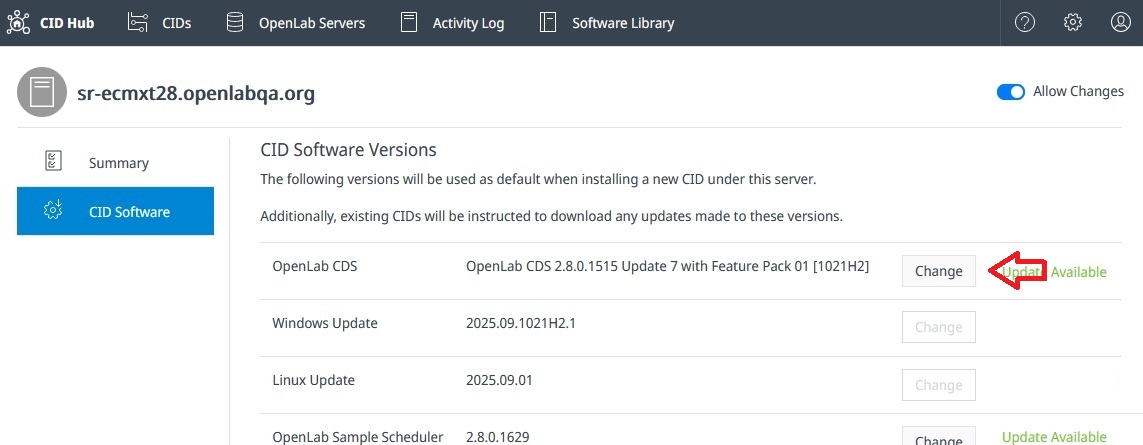
The picker lists every available CDS version with its release date and a link to the release notes. Use it to compare versions in place before committing to the change.
-
Select the version you want to install.
-
Click Save.
A confirmation dialog summarizes the change. Review it carefully because changing the CDS version resets other selections.
-
Confirm the change.
The new selection is recorded immediately. CIDs that inherit from this server (or this CID, if you changed it directly) begin downloading the new version in the background.
Do not apply updates until you reselect any driver, add-on, and OS update versions your deployment requires. Changing the CDS version resets those selections to the defaults that ship with the new CDS version. After you reselect them on the same Software tab, install the combined change with Apply updates.
Install the new version
Saving the selection does not install the new version. Each affected CID downloads it in the background and waits for an administrator to start the install.
When the Updates column shows Ready for the CID, install OpenLab CDS and its associated changes with Apply All Updates. The per-component Install buttons are not available while an OpenLab CDS change is pending. See Apply updates for these methods:
- Update several CIDs at once from the CIDs list.
- Apply all pending changes to a single CID from its Software tab.
See also
- Define a software template: set CDS, drivers, OS updates, and add-ons at the server level for inheriting CIDs.
- Configure software exceptions: override the CDS selection for a single CID.
- View activity logs: review the history of template and CID-level CDS selection changes.
Last updated: