Apply updates
All software on a CID, including the Linux host, the embedded Windows VM, the instrument drivers and add-ons, and OpenLab CDS, is updated through CID Hub. This page is for the lab administrator or IT operator who installs the changes after they have been selected (see Define a software template and Configure software exceptions).
After a software selection changes, the CID downloads it in the background and waits for an administrator to start installation. See Software update behavior for download states, installation order, and failure handling.
For procedures that walk through selecting a version before applying it, see the sibling pages:
Once an installation starts, do not power off or reboot the CID until Recent activity reports the operation as finished or restored. An interrupted installation may leave the component in a state that requires support to recover.
Prerequisites
Confirm these prerequisites before you apply updates.
- You must have an administrator role to apply updates.
- The CID must have Allow Changes on. (Bulk updates skip any CID with Allow Changes off.)
Recommended CID state
Apply updates when Status and Updates both show Ready and no instruments are running on the CID. Applying updates while the CID is In Use can interrupt acquisition or analysis. See CID statuses and record fields for the status definitions.
Installation order
When several components are applied together, CID Hub installs them in the order defined in Software update behavior. Windows updates download after you start the update operation, rather than during the background download stage.
Apply updates to several CIDs at once
Use this method to update a group of CIDs from the main list.
-
In CID Hub, click CIDs in the top navigation bar.
-
To apply updates after all required background downloads have finished, use the Status and Updates column filters to narrow the list to CIDs that are Ready in both columns.
-
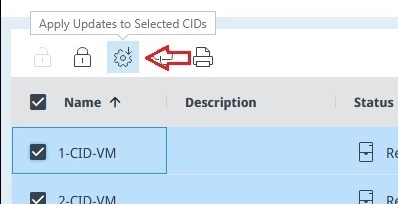
Select the checkbox for each CID you want to update.
-
Click Apply All Updates in the toolbar above the table.
-
Confirm the action.
Each selected CID begins installing the pending changes that are ready to apply. Components whose required downloads are incomplete are skipped. After those downloads finish, run Apply All Updates again to install the remaining changes. Progress is shown in the Updates column and, for each CID, in the Recent activity section of its Summary page.
CIDs with Allow Changes off, with no pending changes, or that are disconnected are skipped. The list of skipped CIDs is shown in the result message.
Apply all pending updates to one CID
Use this method when you want to update one specific CID, without affecting others. All pending changes for that CID are installed in one action.
-
On the CIDs list, click the CID name.
The CID detail page opens.
-
Select the Software tab.
-
Click Apply All Updates.
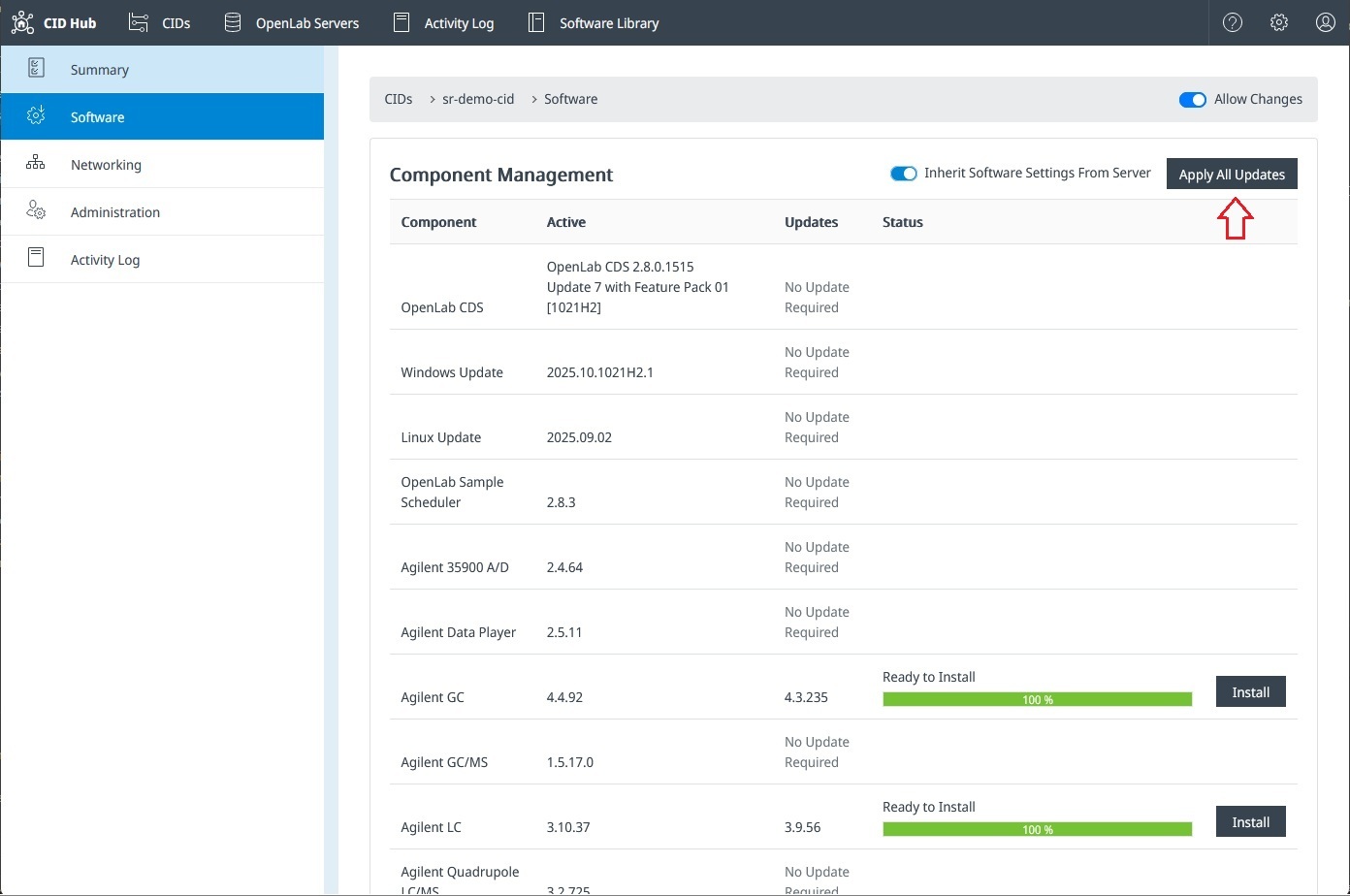
The CID installs every pending component in the defined installation order. The status of each component updates live in the Status column.
Apply a single update to one CID
Use this method when you want to install one specific component on a specific CID, for example to stagger a large update or to retry a single failed item.
If an OpenLab CDS change is pending, the per-component Install buttons are hidden. Use Apply All Updates to install OpenLab CDS and the associated pending changes.
-
On the CIDs list, click the CID name.
The CID detail page opens.
-
Select the Software tab.
-
Find the row for the component you want to install. The Status column shows where the component is in its lifecycle (for example, Downloading, Ready to install, Installing).
-
Click Install on that row.
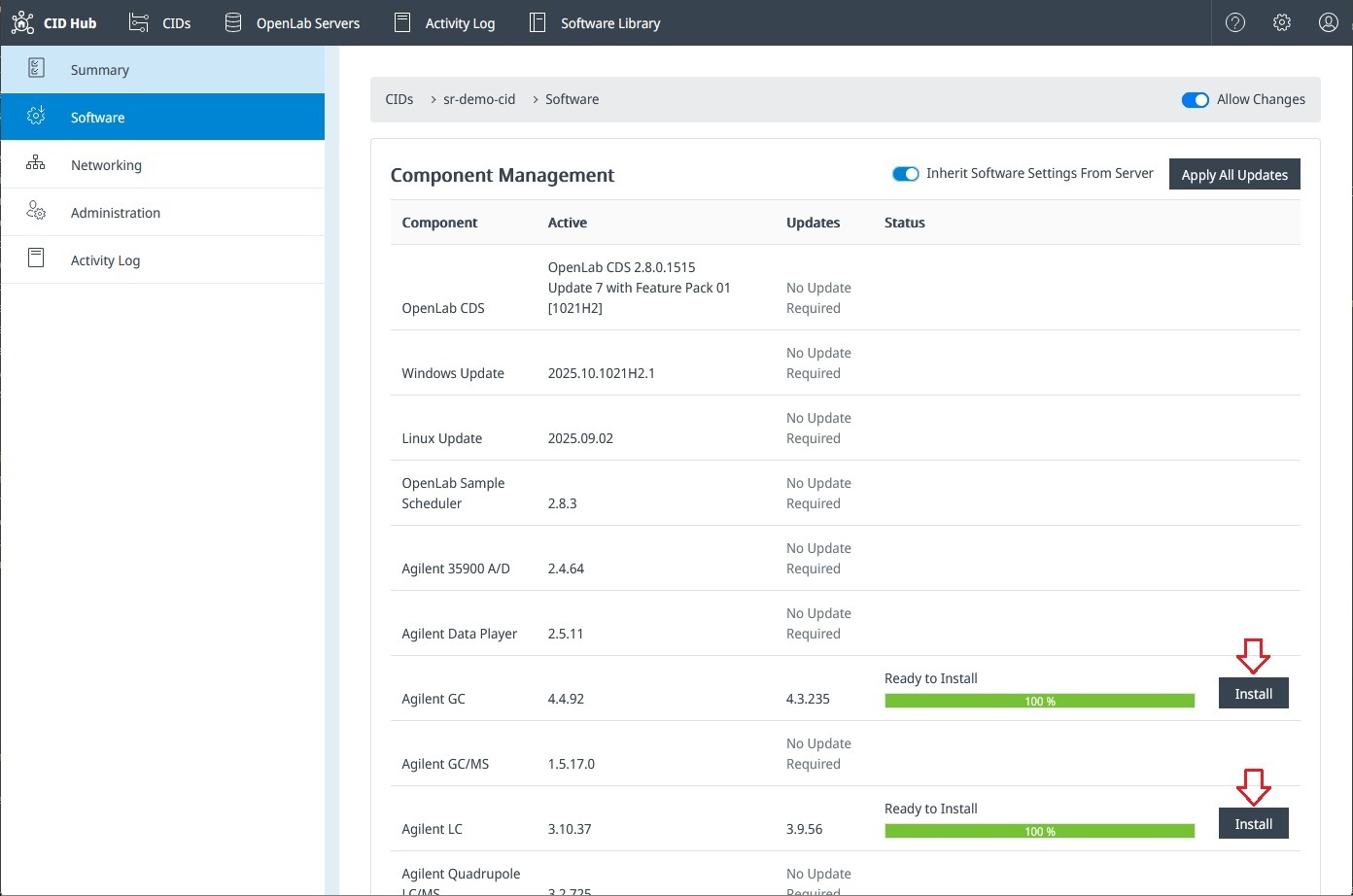
The component installs by itself. Other pending components stay queued and are not affected.
What happens on failure
If an installation fails, review Failure behavior to understand how CID Hub handles that component. Recent Activity and the Activity Log record the failure and any recovery action.
To recover:
- Review the failure message in Recent activity and the matching entries in the Activity Log.
- Address the cause (for example, free disk space, restore network connectivity, or pick a compatible version).
- Reapply the update using one of these methods: Apply updates to several CIDs at once, Apply all pending updates to one CID, or Apply a single update to one CID. You only need to retry the components that failed.
- If reapplying the update does not recover the CID, or if a CDS restore cannot complete, follow Restart, register, or reset a CID and run Reset OpenLab CDS. This installs a fresh CDS VM from the baseline. Use this recovery option only after the other steps fail. Contact Agilent support if the reset does not return the CID to Ready.
See also
See these related pages for choosing versions, checking readiness, and recovering from failures.
- View CIDs: check Status, Updates, and Allow Changes before starting a bulk update.
- View activity logs: review the history of update installs and any automatic restores.
- Restart, register, or reset a CID: run Reset OpenLab CDS when recovery is needed.
Last updated: