Verify CID internet connectivity
Product: Agilent Connected Instrument Device (CID) for OpenLab CDS Audience: Agilent Support, IT/network administrators Support reference: Network / connectivity triage
The diagnostic procedures on this page are intended for IT administrators familiar with Linux commands. Incorrect use of the underlying tools can misconfigure the CID and render it inoperable. Proceed only if you are comfortable working in a Linux environment.
Symptom
You suspect a network or connectivity problem is preventing the CID from reaching Agilent cloud services, but you do not yet have a specific error to act on. Common triggers:
- Activation of a brand-new CID is stalling or failing with no clear error string.
- Activation, monitoring, or software updates began failing after a network change (for example, a new firewall rule, NIC swap, VLAN move, or proxy change).
- The CID appears offline in CID Hub and you need to confirm whether the cause is at the network layer before opening a support ticket.
Confirm this is the right document
Use the following table to confirm that this triage page is the right starting point.
| You observe | Go to |
|---|---|
| One or more beeps on startup | Beep codes on startup |
| A specific TCP, TLS, certificate, NTP, or DNS error in logs or the UI | The matching page in Related documents |
| No specific error, but connectivity is suspect | Continue with this page |
Affected services
A connectivity failure detected on this page can affect any CID service that depends on outbound access, including:
- Activation and registration with CID Hub
- Telemetry and health reporting
- Software update delivery
- Communication with the OpenLab Server
For the canonical list of endpoints the CID must reach, see the Internet requirements section of System requirements.
Background
The connectivity tester runs the following command against each endpoint:
nmap -v --script=resolveall --traceroute -p 443 <URL>
On versions that include the Network Time Protocol (NTP) check, the tester runs chronyc sources instead of nmap for the NTP entry.
Interpret the results with the right level of confidence:
- A failed test can identify DNS, routing, firewall, TCP, or NTP connectivity problems. It can also reflect a missing tool, insufficient permission, or an unrecognized result, so use the displayed output when choosing the next step.
- A passed
nmaptest means the tester classified the host as up. It does not by itself prove that TCP port 443 or the complete connection path is working, and it does not test the application-layer request.
This is why the tester is the first tool to use for a suspected network issue, and why a clean run still routes you on to the TLS, certificate, NTP, and OpenLab Server pages.
Prerequisites
- A CID Hub account that can launch Cockpit, with Allow Changes enabled for the CID.
- When launching Cockpit, select Local or Remote and enter a reason for the session. Local access requires the computer to be on the same corporate network as the CID; remote access requires internet connectivity.
- Familiarity with reading
nmapoutput: DNS resolution, port state (open/filtered/closed), and traceroute hops.
Access the connectivity tester
The connectivity tester is a diagnostic application inside the Linux Cockpit interface. The access path depends on whether the CID has been activated.
Activated CID
- In CID Hub, navigate to the Administration tab for the device.
- Click Launch Cockpit.
- Select Local or Remote, enter a reason for the session, and continue.
- Log in with:
- Username:
agilentac - Password: the complex password shown on the Administration tab. It contains at least 10 characters and is rotated every 24 hours.
- Username:
Unactivated CID
Direct-IP access requires Cockpit to be configured to accept the CID's IP address.
- Find the CID's IP address on your network.
- Open a browser to
https://<CID-IP>/ac-cockpit/. - Log in with:
- Username:
agilentac - Password: the factory default password provided by Agilent support or services personnel.
- Username:
No network access (direct console)
If the CID cannot be reached over the network, for example because of a misconfigured IP address or a complete connectivity failure, attach a monitor and keyboard directly to the CID and log in at the console. From the console you can run the manual diagnostic commands described in the linked failure-mode pages directly in the terminal.
Diagnostic steps
Step 1. Launch the tester
In the Cockpit left-hand navigation, open the CID Connectivity page.
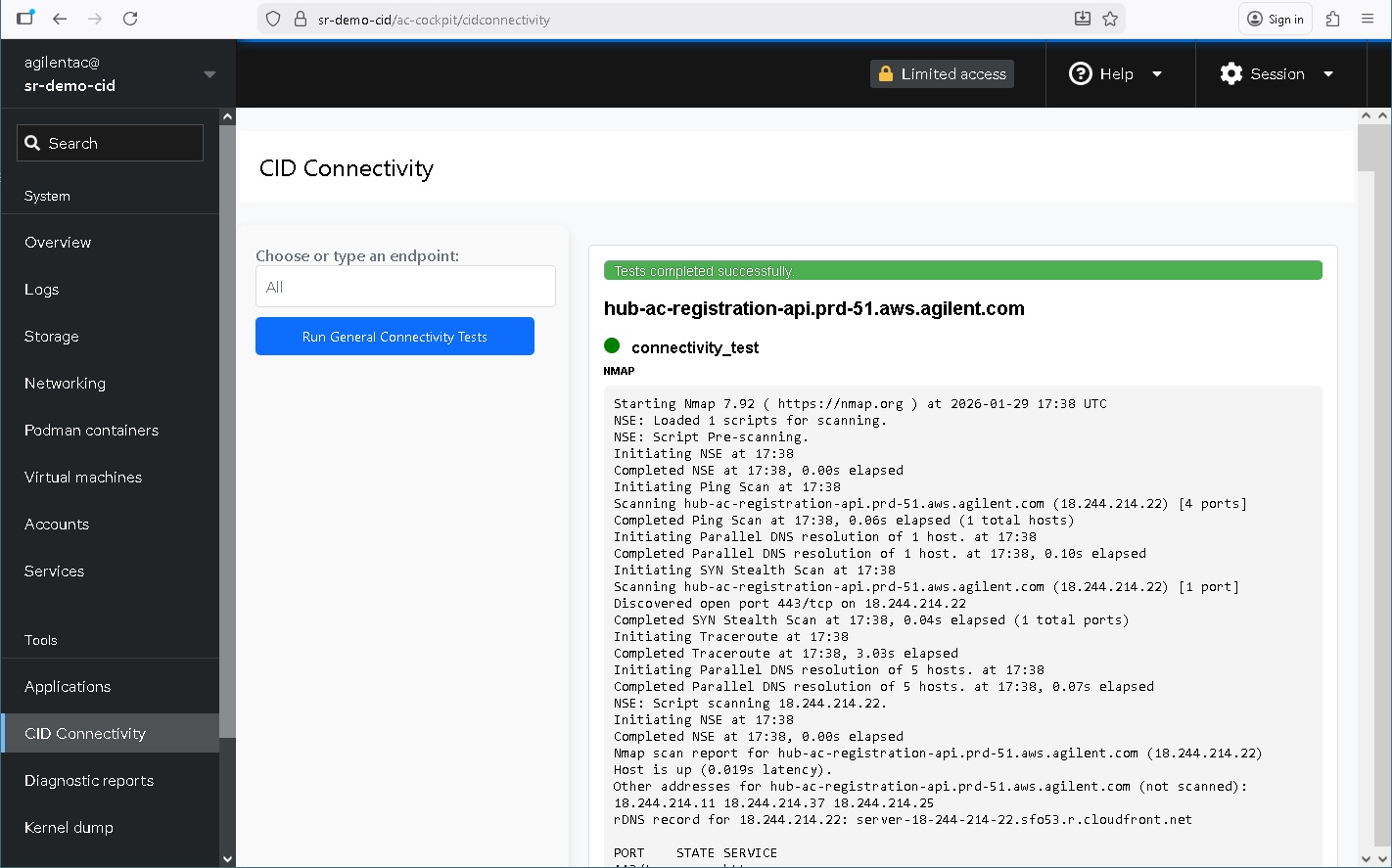
Step 2. Run the general connectivity test
Click Run general connectivity tests to test every endpoint the CID requires in a single pass. This is the recommended starting point.
For the full endpoint list, see the Internet requirements section of System requirements.
| Result | Next step |
|---|---|
| All endpoints pass | If activation or sync is still failing, continue to Step 4. |
| One or more endpoints fail | Note which endpoints failed, then continue to Step 3. |
Step 3. Read the result for each failed endpoint
Each failed result includes DNS, port-state, and traceroute information. Use the result indicator to route to the right page.
| Result indicator | Failure type | Next step |
|---|---|---|
| Hostname does not resolve to an IP address | DNS | DNS resolution failure |
Port 443 shows filtered, or the connection times out | Firewall silently dropping TCP 443 | TCP port 443 blocked |
Port 443 shows closed (actively refused) | Firewall or routing rejecting TCP 443 | TCP port 443 blocked |
| Traceroute terminates at an internal IP address | Traffic is not leaving the corporate network | TCP port 443 blocked |
| NTP check fails | Time-source connectivity | NTP time synchronization failure |
Output reports that nmap is unavailable, permission is denied, or the result is not recognized | The diagnostic could not complete | Record the output and contact Agilent Support. |
Step 4. Rule out the false-positive cases
A passing tester does not exclude every cause. If activation or sync continues to fail despite a clean run, work through the matching page from the following table.
| Symptom alongside a passing tester | Next step |
|---|---|
| Certificate or TLS errors in logs | TLS handshake failure |
| Certificate validation fails after the network checks pass | Certificate validation errors |
| NTP errors, time-sync warnings, or clock-skew messages during activation | NTP time synchronization failure |
| OpenLab Server cannot be reached or fails validation | OpenLab Server unreachable |
Step 5. Test a specific endpoint (optional)
Use the Choose or type an endpoint field to select a predefined endpoint or to enter a custom URL such as www.agilent.com. This is useful for investigating one service when the general test passes but that service still fails.
| Result | Next step |
|---|---|
| The endpoint passes | If activation or sync is still failing, work through the checks in Step 4. |
| The endpoint fails | Read its DNS, port-state, and traceroute output, then route on the result indicator using Step 3. |
Resolution
This page does not resolve a connectivity failure on its own. Its job is to identify which failure-mode page applies. Apply the resolution from the page identified in Step 3 or Step 4.
If every test passes and none of the linked troubleshooting pages applies, save the tester output and relevant Recent Activity messages, then contact Agilent Support.
Related documents
Last updated: